


If you are a business producing multi-page materials, collated printing is worth considering. Without collation, your employees spend hours manually sorting pages on large print runs. While collated printing does this automatically, it streamlines your operations.
Ensure all client packets look professional upon distribution by leveraging collated printing. Dive into what collate means when printing. Knowing this will help you optimise your business's printing workflows. Let's begin:
What Does Collate Mean When Printing?
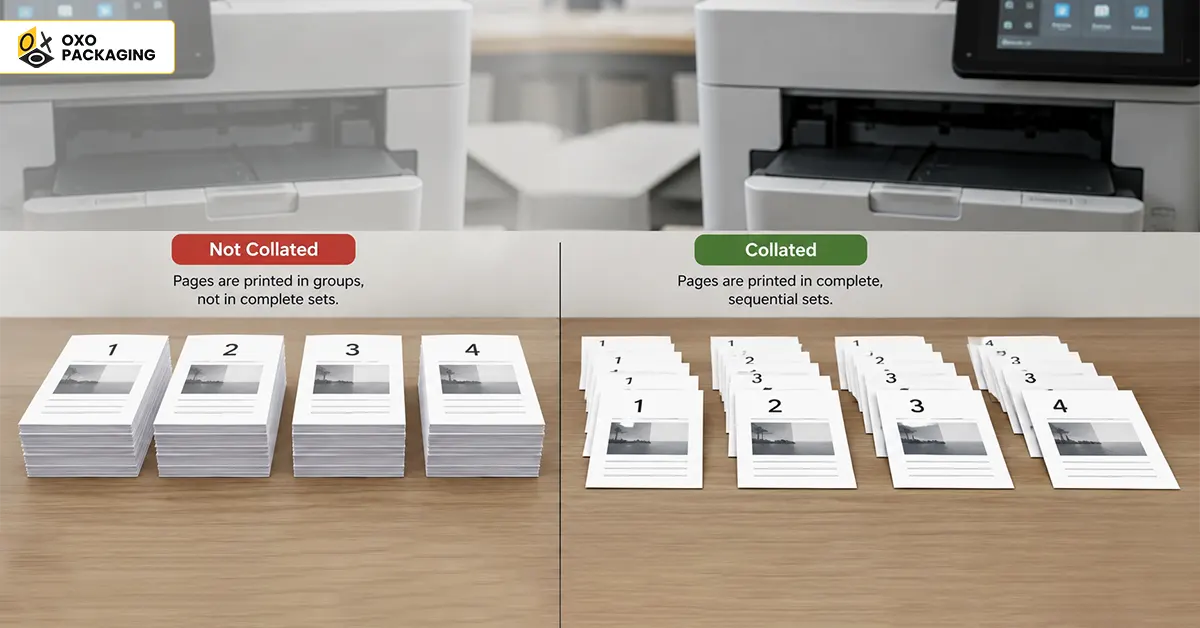
When printing multiple copies of a multi-page document, “collate” means organising the printed pages into complete, sequential sets. It ensures that each set is grouped exactly how the document is meant to be read.
Collate: On vs. Off
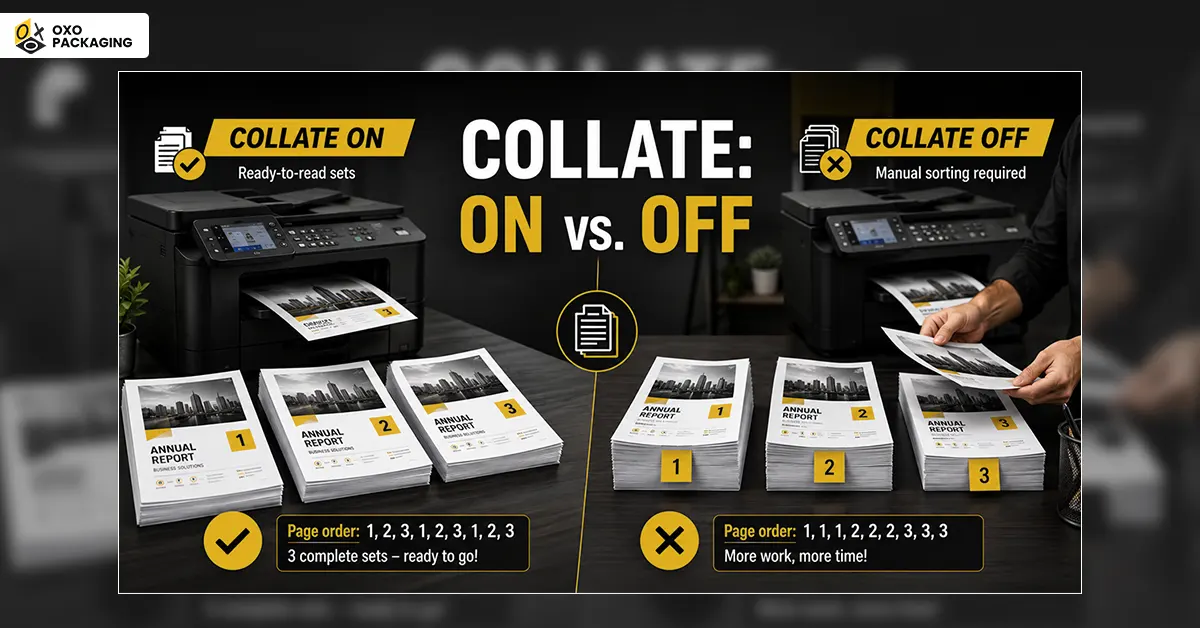
To understand how it works, imagine you are printing 3 copies of a 3-page document.
-
Collate (ON)
The printer finishes Copy #1 (pages 1-3) before starting Copy #2.
Page order: 1, 2, 3, 1, 2, 3, 1, 2, 3
Result: Your pages come out in 3 ready-to-read packets.
-
Collate (OFF)
The printer prints all copies of the first page, then all copies of the second page.
Page order: 1, 1, 1, 2, 2, 2, 3, 3, 3
Result: You get 3 stacks of identical pages that you have to sort into sets manually.
Consider the Benefits of Collating for Printing
After getting the answer to the question, what does collate mean when printing? Have a look at the versatile benefits that collating brings you, such as:
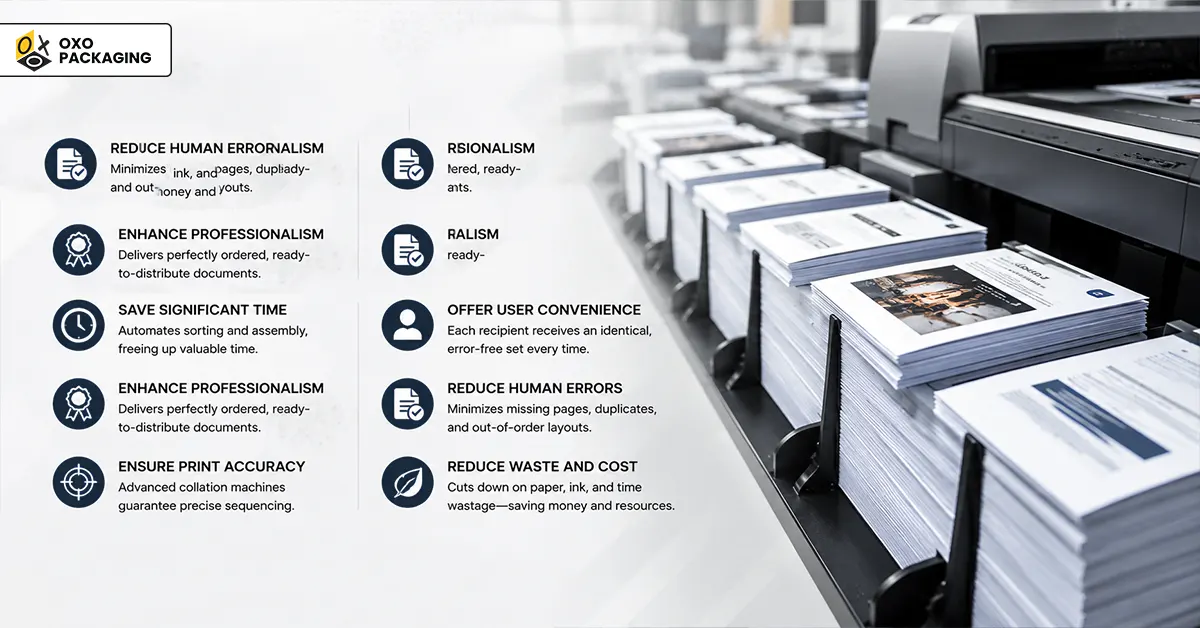
Save Significant Time
Instead of manually gathering and organising scattered pages into complete booklets or reports, the printer does the heavy lifting, enabling immediate binding or stapling. It automates the sorting process, preventing operators from standing by the printer and manually gathering individual pages to form complete reports, booklets, or training materials.
Offer User Convenience
Collating prevents misplaced pages or duplicate sheets, ensuring that every recipient receives an identical, error-free packet. It automates the sorting process, preventing you from having to stand by the printer and manually gather individual pages to form complete reports, booklets, or training materials.
Enhance Professionalism
Collating ensures every single copy is a perfectly ordered, ready-to-distribute set, which is highly important for client pitches, educational materials, and board meetings. As a result, papers are immediately ready for binding, stapling, or handing out in meetings, making your documents look neat, organised, and polished.
Reduce Human Errors
Automated sequencing significantly reduces the chances of missing pages, duplicate sheets, or out-of-order layouts that often occur during manual assembly. In high-stakes environments (such as HR, legal, or finance), correctly sequenced packets project professionalism.
Ensure Print Accuracy
In mass or commercial printing, collation machines, also called gathering machines, use a series of tray stations that hold individual "signatures" (large folded sheets). Conveyor belts pull a single sheet from each station sequentially to assemble the complete book block.
Reduce Waste and Cost
Eliminating manual sorting naturally lowers the volume of damaged or misaligned papers, saving both material and printing costs. By eliminating the need to discard entire misordered multi-page sets, you also conserve significant amounts of paper and ink, lowering their environmental footprint.
Look at Common Use Cases for Collating
Wondering whether you can use collating? Here are the primary use cases and scenarios for collating:
Business Presentations and Pitch Decks
Collating keeps the printed presentation slides arranged in the exact sequence intended. It prevents confusion during pitch meetings or corporate reviews. Also, collating prevents accidental page-swapping or inverted slides that can disrupt the professional flow of a corporate review.
Training and Educational Materials
Training manuals, study guides, and instructional booklets require a specific progression of information. Collation ensures every employee or student receives an identical, fully assembled packet.
Monthly and Annual Reports
Corporate or financial reports often contain multiple sections like summaries, charts, and appendices. Collating ensures each copy is printed in order so recipients get a complete document.
Billing Statements and Invoices
For businesses handling high-volume accounting, collation groups all pages related to a single customer's invoice together, reducing billing errors and saving manual sorting time. This ensures smooth handling, whether you are organising print jobs or managing digital statements.
Event or Conference Packets
Event organisers need to prepare information packets that bundle schedules, maps, and speaker biographies. Collation ensures the packet is properly sequenced from the first page to the last. The printer finishes one complete packet (schedules, maps, speaker bios) before starting the next. This saves hours of manual shuffling.
How To Collate?
To enable collation on your computer when printing documents, follow these step-by-step instructions:
- Open your document and press Ctrl + P (or go to File > Print).
- Set the Number of Copies you need.
- Look for the Collate checkbox, which is often represented by an icon of three-layered pages.
- Make sure the box is checked, then hit Print.
When to Print Collate?
Collate whenever you are printing multiple copies of a multi-page document. Consider when you need to collate:
- Binding, Stapling, or Boxing: Always turn on collation when you are making packets where pages need to stay in order immediately after printing.
- Time-Sensitive Projects: When you need a fast workflow without the extra task of sorting or arranging loose sheets.
- Professional Presentations: To avoid the risk of handing out disjointed pages during corporate meetings or academic presentations.
When to Print Uncollated?
Print uncollated when printing large volumes of single-page documents, like flyers, handouts, or forms. Have a look below:
- Single-Page Documents: You are printing posters, flyers, or fact sheets where page order doesn't matter.
- Bulk Handouts: You need to distribute individual pages to different people, such as classroom worksheets or medical registration forms.
- Event and Trade Show Materials: You are promoting multiple different products, and you need distinct stacks for each.
- Notepads: Identical tear-away sheets are always printed and bound in uncollated stacks.
- Offset Printing and Post-Processing: You are mass-printing pages that will be manually separated, custom-sorted, or die-cut later.
How to Enable or Disable Collating?
To enable or disable collating when printing, open your print menu. Locate the Collate checkbox or dropdown. And check it to keep pages in sequential order (e.g., 1, 2, 3). Or uncheck it to group identical pages together (e.g., all 1s, then all 2s).
Where to Find Collated Printing?
If you prefer to submit your files online and have them delivered, OXO Packaging offers you on-demand services. You can order custom multi-page prints, which allow you to specify collated multi-page booklets or manuals based on your business needs.
Yes, you want to collate if you are printing multiple copies of a multi-page document. Collation organises the printed output into complete sets (e.g., Pages 1, 2, 3, followed by Pages 1, 2, 3), saving you the time of manually sorting stacks of individual pages.
Whether to turn collate on or off depends entirely on what you are printing and your workflow. Turn collate on for multi-page documents, including reports, essays, presentations, or booklets. Turn collate off if you are printing 10 copies of a single-page flyer and need all page 1s in one stack and all page 2s in another.
No, collating and double-sided printing are completely different functions. Collating organises the page order of multi-page documents, while double-sided printing controls which sides of the paper are printed on.
If you are printing three copies of a 5-page report. With Collation ON, the printer will output three separate, perfectly ordered sets. You will get Set A (pages 1-5), Set B (pages 1-5), and Set C (pages 1-5). They are ready to be stapled or handed out immediately.